If you’d like to use our themes in another language, it’s pretty easy to do. This tutorial assumes you already have a .mo file in your language and you’re ready to upload it to your AppThemes site.
In this example, we want to change JobRoller to Brazilian Portuguese. Here are the steps you need to take.
Step 1
Download the language file from our language pack page. Unzip the package and inside you’ll find a pt_BR.mo file. Rename that file to jobroller-pt_BR.mo and then set it aside. We’ll come back to it later.
Step 2
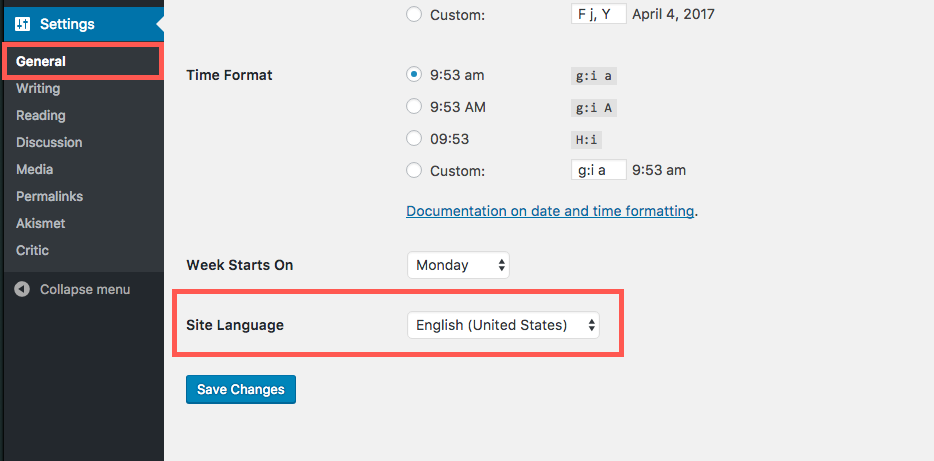
You declare this in the wp-config.php file usually located in the root on your server. You’ll need to use SFTP or SSH in order to edit this file.
Once you are in edit mode, add the following line anywhere. Make sure this doesn’t already exist, however.
define( 'WPLANG', 'pt_BR' ); |
Now upload that file back to your server and overwrite the old one.
Step 3
Next you need to upload the .mo file to your server. This file contains the actual text translations for the theme. Before doing so, you’ll need to create a couple of new folders. SFTP/SSH back to your site and go into the wp-content folder.
- Create a new folder called “languages”
- Go inside that folder and create another folder called “themes”
- Copy the
jobroller-pt_BR.mofile you set aside earlier into this folder
The final new folder structure with the .mo file should look like this.
/wp-content/languages/themes/jobroller-pt_BR.mo |
Links to all codes can be found in this post.
File naming format should be as follows:
[THEME NAME]-[LANGUAGE CODE]_[COUNTRY CODE].mo |
Now visit your website and refresh any page (clear your cache too if using a caching plugin). You should now see it in Brazilian Portuguese!
FAQ
Where is my language file directory?
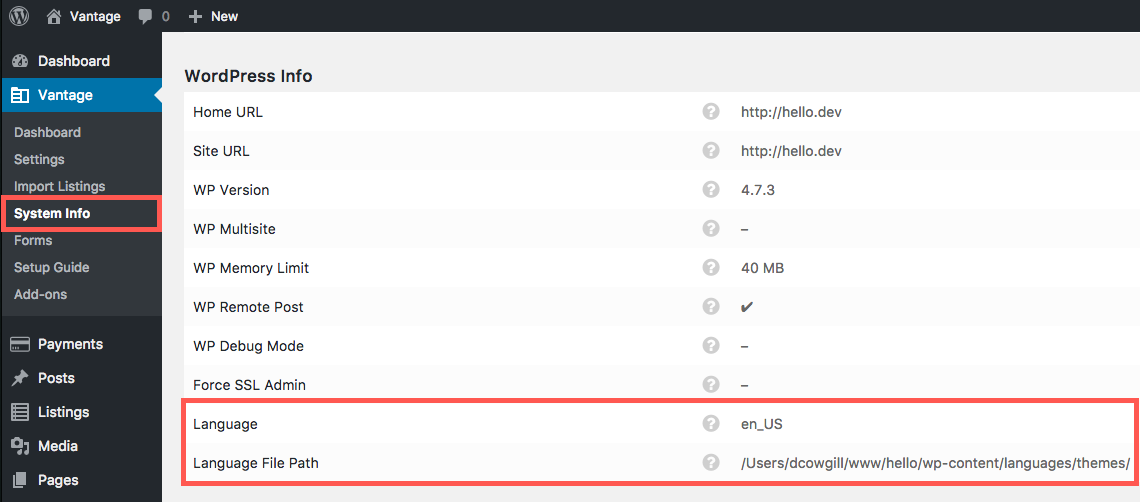
Login to your website and visit the “System Info” page. Under the “WordPress Info” section, look for the “Language File Path” entry. You can also confirm it’s using the correct language by looking at the “Language” entry. This tells you the language and country code naming convention to use for your .mo file.
Why do I have to create new folders for the language file instead of just placing it in the /wp-content/themes/jobroller/ folder?
Because the language file would get deleted if you upgraded to the next version. This wasn’t the case until we moved to two click theme updates back in October, when we had to make this change.
Like this tutorial? Subscribe and get the latest tutorials delivered straight to your inbox or feed reader.